

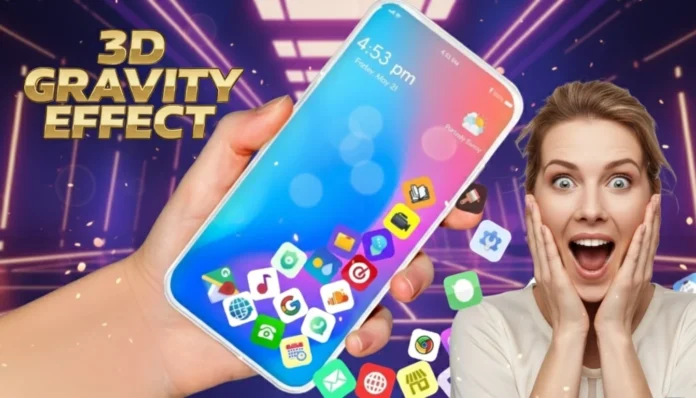
Hi, I’m Aman Lalani from Technical Masterminds. If you’ve seen clips where a phone’s home screen seems to move when someone tilts it, this post will show you how to get that look on almost any Android phone. It’s simple to set up, works on budget devices, and gives your phone a fresh moving look without complicated changes.
What is the moving home screen?
The moving home screen uses the motion sensors already built into most phones. After installing a small Play Store app, your icons and wallpaper respond to tilt and rotation. The icons shift slightly as you move the device, giving a layered floating feel. It looks like depth without changing your launcher or rooting the phone.
Why try this on your phone?
There are a few reasons this trick is popular. First, it makes your phone stand out. A small motion adds personality and makes daily use feel a little more fun. Second, it is easy to set up. No technical skills needed. Third, it works well on many phones. I tested it across several models and it did not slow down the devices. Finally, it is safe and reversible. You can turn it off anytime from the app settings.
Step by step setup
Follow these steps to set up the moving phone screen on your device:
- Open the Play Store link at the end of this post and install the app.
- Launch the app and allow the requested permissions, mainly motion or sensor access.
- Choose a wallpaper or layout inside the app.
- Use the sensitivity slider to control how much the icons move.
- Save your settings and return to the home screen to see the effect.
That is all. In a few minutes you will have a live moving phone screen that responds to every tilt.
Tips for the best result
- Choose the right wallpaper: Dark or gradient wallpapers make the motion more visible and cleaner.
- Keep icons minimal: A clean home screen shows the effect better than a crowded one.
- Adjust sensitivity: Start low and increase until the motion feels natural.
- Try smaller icons: If your launcher allows, slightly smaller icons create a smoother float.
- Pair with one widget: A simple clock or weather widget balances the layout without covering the motion.
Does it hurt battery life or performance?
In my testing the app is light on resources. It reads sensor data while the screen is on and stops when the phone sleeps. For most users there is no noticeable battery drain or slowdown. If you see any issues, the app includes options to reduce sensitivity or pause the effect until you want it back.
Compatibility and safety
This setup works on the majority of Android phones because most devices include the required motion sensors. There is no rooting required and you do not need to change your launcher. The app used is available on the official Play Store and can be removed at any time if you decide you want to go back to a standard home screen.
Common questions
Will it slow my phone? No, it is designed to run smoothly and should not affect normal use.
Can I turn it off? Yes, disable it from the app settings whenever you want.
Is it safe? Yes, it is a Play Store app and does not require system changes.
Why it works well for everyone
Many people assume only flagship phones can have special effects, but this one uses basic sensors found in most models. That means even budget phones get the same moving phone screen experience. It is a small change that makes daily use a bit more enjoyable and gives your phone a modern feel without cost or risk.
How I used it on my reel
I shared a short clip on Instagram showing the home screen movement and the response was great. People asked for a how-to and that’s why I wrote this guide. The setup is easy to record and share, so if you like you can make a short clip of your setup and tag friends who would enjoy the look.
Final thoughts
If you like tweaking your phone without complicated steps, try this moving home screen trick. It is free, safe, and reversible. You get a lively, personal look on your device without changing how you use your phone. I suggest trying it for a few days to see how it feels. If you want to revert, the app lets you turn it off easily.
This post was written by Aman Lalani from Technical Masterminds. If you try it, let me know how it looks on your device. The Play Store link is below for the app used in this guide.
What people are saying
Here’s what people are saying after following Aman Lalani from Technical Masterminds and trying his tutorials and mobile setups.
Sara K.
After setting up the moving home screen effect that Aman shared, my phone looks completely new. It’s a simple trick but makes the setup feel premium.
Ravi P.
I followed Technical Masterminds’ performance tweaks, and my phone now runs so much faster. Great tips, easy to apply.
Neha S.
Watched Aman’s reel on the 3D motion screen and applied it easily. My icons move smoothly, and it gives my phone a stylish look.
Jatin M.
Thanks to Technical Masterminds, I learned how to boost my mobile battery backup by adjusting hidden settings. Works great!
Priya R.
Using Aman’s guide, I managed to install and play GTA 5 on my Android. The tutorial was simple and clear, amazing work!
Adil Z.
I’ve been following Technical Masterminds for months now. Every tutorial is useful, whether it’s about apps, games, or customization.
Frequently Asked Questions
Will this work on my Android phone?
Yes. Most Android phones already include the motion sensors needed for the moving home screen setup. If your phone is older, check the Play Store listing for compatibility.
Does the moving screen effect drain the battery?
No, it’s very lightweight. The app uses motion sensors only while the screen is active, keeping battery use minimal.
Can I control how strong the motion looks?
Yes. Inside the app, you can adjust sensitivity or depth to make the motion more subtle or more noticeable, depending on your preference.
Is it safe to install and remove?
Absolutely. It’s a Play Store app, doesn’t require root access, and can be uninstalled anytime. Your phone will return to its original state instantly.
What kind of wallpaper works best?
Clean, dark, or gradient wallpapers work best. Minimal backgrounds enhance the 3D floating effect of the icons.
Will this affect other apps or performance?
No. It only changes visual depth on the home screen and doesn’t interfere with games or app performance.
